PagerDuty alerts for uptime monitoring
Send uptime alerts to PagerDuty when an incident needs a guaranteed response. Page the on-call rotation for real outages, and keep everything else in chat or email.
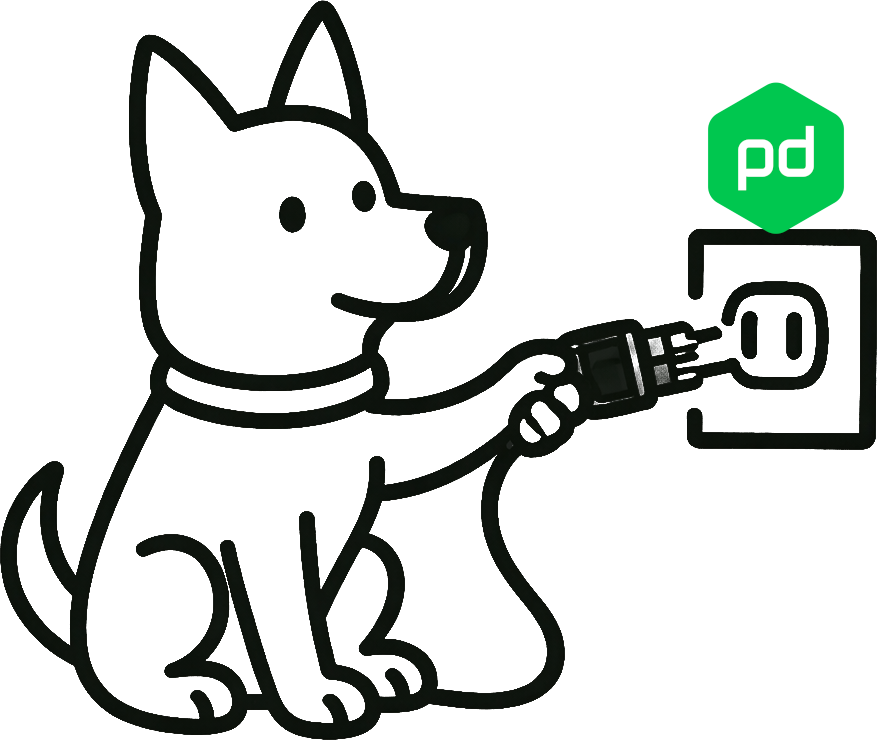
How UpDog + PagerDuty works
Use PagerDuty when an incident needs guaranteed response. UpDog opens (and resolves) incidents based on monitor state changes so your on-call rotation gets paged only when it matters.
When to route to PagerDuty
- Production-critical endpoints and core user flows
- High-severity downtime and repeated failures
- Incidents that require acknowledgement/escalation
Common pairing
- PagerDuty for paging on-call
- Slack/Teams for team coordination
- Email for lower urgency and audit trail
What you can do with UpDog + PagerDuty
- Send PagerDuty uptime alerts for high-severity downtime and recoveries.
- Escalate to on-call using your PagerDuty schedules and policies.
- Reduce alert fatigue by routing only the monitors that require immediate human response.
How to set it up (step-by-step)
- Create or pick your production-critical monitors in UpDog.
- In PagerDuty, create/select the service that should receive incidents.
- Create an alert for the monitor that should page on-call.
- In the alert modal, choose PagerDuty and connect it (method varies by PagerDuty configuration).
- Save the alert and send a test to confirm it creates an incident in PagerDuty.
Best practices
Only page for “must respond now”
If it can wait until business hours, it probably doesn’t belong in PagerDuty. Use Slack/Teams or email for lower urgency notifications.
Avoid flapping monitors
If a check is unstable, fix the check before paging the team. Tuning retries/intervals is often the fastest win.
Pair PagerDuty with a team room
Page the on-call in PagerDuty and post context in Slack/Teams so the rest of the team can jump in when needed.
Troubleshooting
- No incidents in PagerDuty: confirm the integration is connected and the service/key is correct.
- Incidents fire for the wrong monitors: check which monitors are assigned to PagerDuty notifications.
- Too many pages: remove low-signal monitors from PagerDuty and route them to chat/email instead.
- Incidents don’t auto-resolve: ensure recovery notifications are enabled and are mapped correctly.
FAQ
Related features
Other integrations
Build your alert stack:
- Slack – Team visibility alongside escalation
- Email – Baseline alerts and audit trail
- SMS – Backup for critical pages
- Webhooks – Custom automation
- All integrations
Start monitoring for free
Set up one critical monitor, connect PagerDuty, and page on-call only when it matters.
Start free