Keyword Monitoring & Page Change Alerts
Uptime isn’t the only signal. A page can be “up” while the content is wrong: an error banner, an out-of-stock message, or a broken deploy that still returns 200 OK.
UpDog watches for the specific words and phrases you care about and sends page change alerts when they appear, disappear, or change.
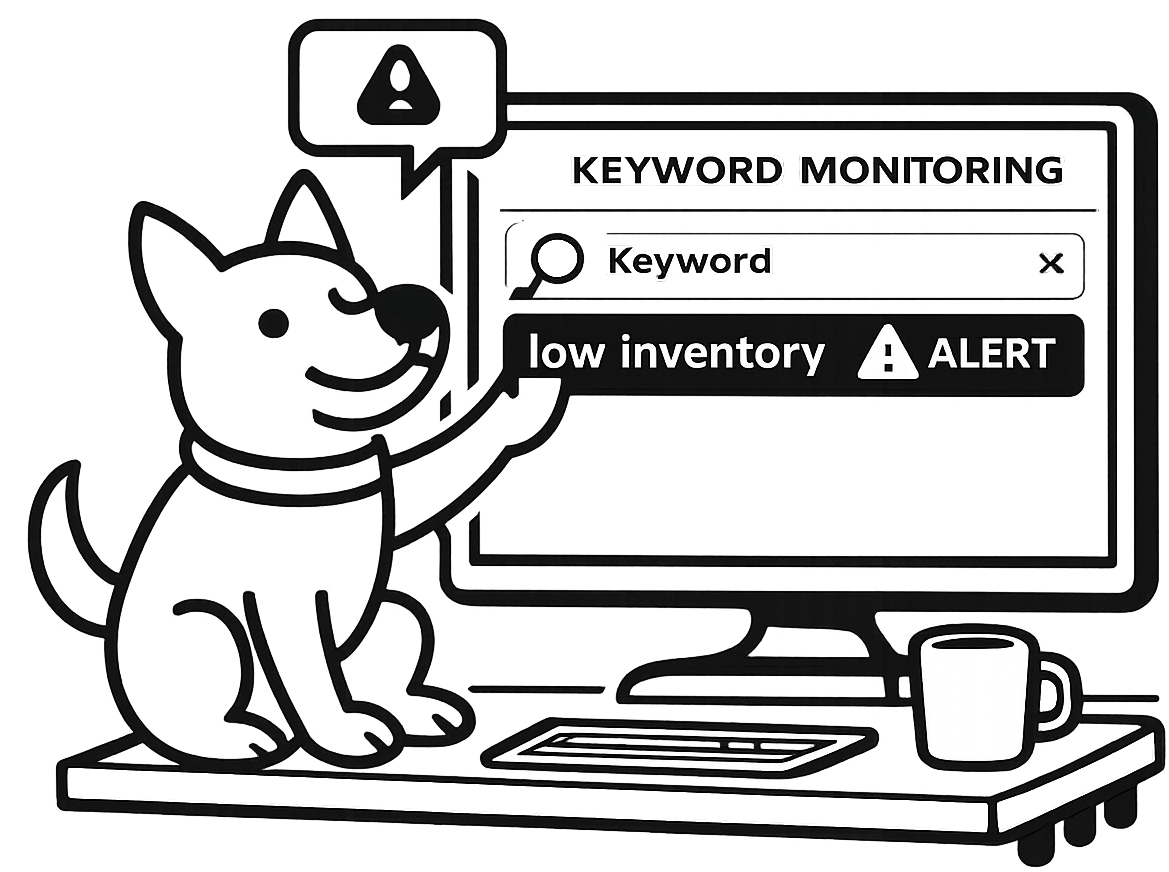
What is keyword monitoring?
Keyword monitoring is a simple form of content monitoring: UpDog periodically fetches a page you provide and checks whether specific text is present (or not present) in the response.
It’s not SEO rank tracking. You’re not monitoring Google positions—you’re monitoring whether a web page says what it’s supposed to say.
What UpDog can alert you on
Keyword monitoring is built for practical “is the page behaving?” checks. You define the signal in plain language, and UpDog alerts based on whether that text is found.
Keyword appears
Get alerted when a phrase shows up on a page (for example, a maintenance banner or a new “available now” message).
Keyword disappears
Get alerted when expected text is missing—useful for broken releases, removed UI elements, or a page returning the wrong template.
Match / no‑match rules
Model real checks using “must contain” and “must not contain” rules. UpDog uses straightforward string matching so you can keep setup simple.
A practical way to catch “up but wrong”
If a page changes, that often shows up as missing expected text or new unexpected text. Keyword monitoring turns those signals into fast alerts without requiring heavy scraping or complex rules.
Common use cases
Teams use website keyword monitoring for operational workflows, product changes, and early incident detection. Examples:
- Inventory changes: “out of stock” disappears or “back in stock” appears.
- Maintenance mode: a “maintenance” banner appears during an incident.
- Pricing updates: “pricing” or “$29/month” text changes after a publish.
- Terms changes: your terms of service or refund policy text changes unexpectedly.
- Compliance pages: privacy policy and legal notices change and you need a record of when.
- Hiring signals: a new job posting appears (“we’re hiring”).
- Security advisories: a vendor advisory page updates with a new CVE or mitigation step.
- Release notes: a product release notes page gets a new entry.
- Status page keywords: “incident”, “degraded”, or a specific component name appears.
- Tickets and drops: event tickets switch to “available now”.
Monitor the right part of the page
Most pages contain noisy parts that change all the time: headers, footers, cookie notices, rotating banners, timestamps, A/B tests, and localization. If your keyword is too generic, you’ll either miss the real change or get false alerts.
- Choose stable pages when possible (a product page, a release notes page, a specific status component).
- Choose specific phrases that reflect the real state (for example, “out of stock” vs “stock”).
- Avoid dynamic snippets like timestamps and personalized greetings—monitor a phrase that won’t drift.
Tip: use a “monitor-friendly” URL
If you own the page, consider creating a small, stable URL that includes only the text you want to verify (or exposes a clear status string). A clean target reduces false alerts and keeps checks lightweight.
Avoid false alerts
Keyword monitoring is only useful if it’s trustworthy. A few practical habits reduce noise while keeping detection fast:
- Pick unambiguous phrases: prefer full messages over single words.
- Watch for localization and A/B tests: text can vary by language, region, or experiment cohort.
- Use reasonable intervals: very frequent checks can amplify harmless one-off variations.
- Confirm before escalating: if you get an alert that looks suspicious, refresh the page once (or wait a short moment and re-check) before paging the whole team.
How to set up keyword monitoring
- Add a page URL you want to watch.
- Enter the keyword(s) or phrase(s) that represent “healthy” (and/or “unhealthy”).
- Choose alert channels (email and SMS) and a schedule that matches how quickly you need to know.
Route alerts into your workflow
Email and SMS are a great baseline. If you triage incidents elsewhere, route alerts into the tools your team already uses.
See UpDog alerts and integrations for options.
Keyword monitoring vs uptime monitoring
They answer different questions. Pairing them gives you stronger coverage with fewer blind spots.
| Signal | What it tells you | Best for |
|---|---|---|
| Uptime monitoring | The server responds (and typically returns an expected status code). | Hard outages, network failures, DNS/TLS issues, and endpoint availability. |
| Keyword monitoring | The page says what you expect (text is present or absent). | Partial outages, broken deploys, banner changes, and critical content updates. |
A common setup is to monitor uptime for the “front door” URL and add keyword monitoring for a few high-signal phrases (login text, “maintenance”, “error”, “out of stock”, etc.).
Related features
Keyword monitoring is strongest when paired with other signals. Related pages:
- Website monitoring for uptime and HTTP error coverage
- Response time monitoring for latency regressions
- Ping monitoring for network reachability
- DNS monitoring for record drift and routing changes
- SSL monitoring for certificate expiry and TLS safety checks
- Status pages for public incident communication
FAQ
Start keyword monitoring for free
Alert on missing (or unexpected) text on any page. Free plan includes 3 monitors, email alerts and a status page.
Start monitoring free