DNS Monitoring & DNS Change Alerts
DNS is a tiny config surface with a huge blast radius. A single wrong record can take a healthy service offline—or quietly reroute traffic. UpDog sends DNS change alerts so you can catch mistakes, suspicious changes, and drift early.
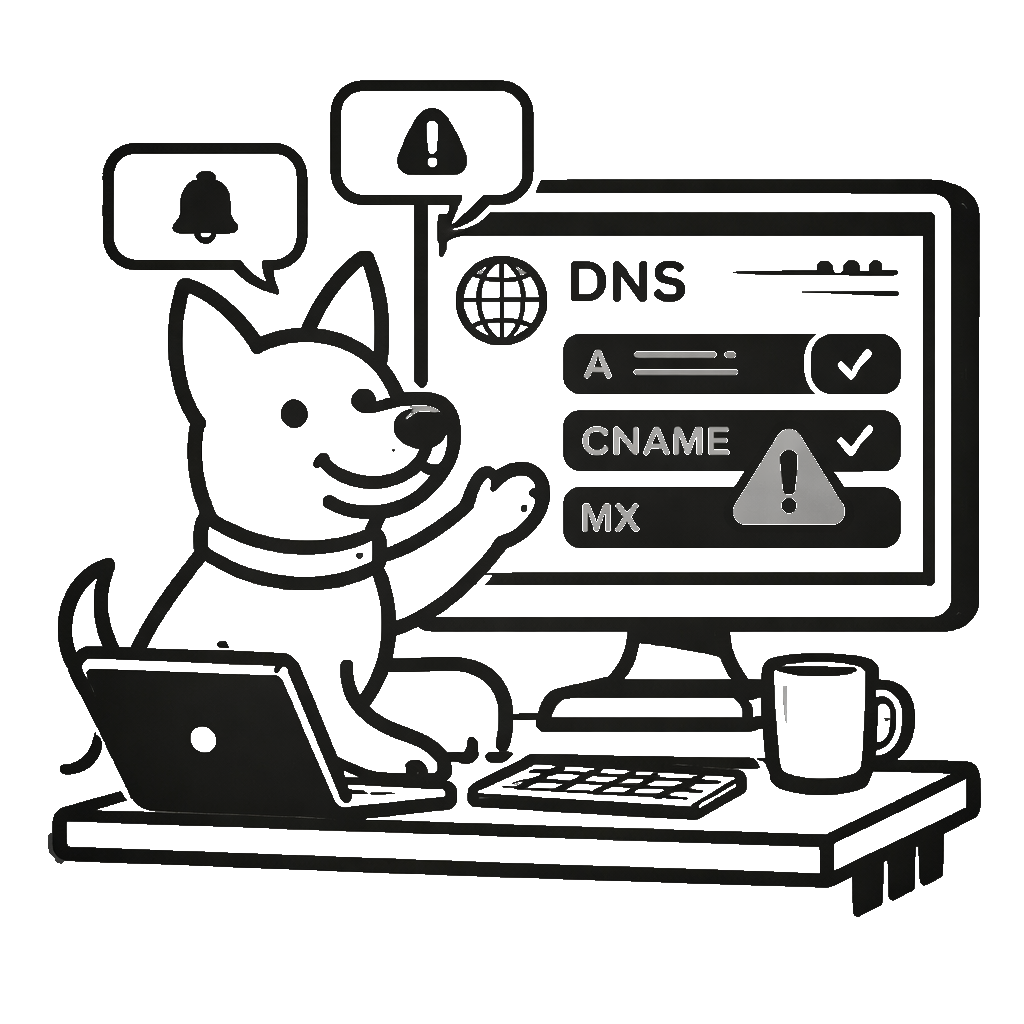
What is DNS monitoring?
DNS monitoring is the practice of checking your DNS records on a schedule and alerting you when something changes. It’s a simple way to protect the “routing layer” of your stack: where traffic goes, where email lands, and which third-party services your domain depends on.
DNS problems can cause downtime even when your servers are healthy. If a record points to the wrong target (or the right target disappears), users will still see errors—because they can’t reach the service in the first place.
What UpDog monitors
Monitor the record types teams rely on every day:
- A and AAAA (IPv4/IPv6 address records)
- CNAME (aliases for CDNs, load balancers, and hosted apps)
- TXT (verification, SPF/DMARC pieces, app config)
- MX (mail routing)
- …and more
When values change, UpDog notifies you and shows what changed. That means less guessing during incidents: you can see the previous value and the new value side by side and decide whether to roll forward or revert.
Why teams use DNS change alerts
- Migrations: catching typos and missed records during provider moves.
- CDN / load balancer swaps: verifying CNAME/A changes match the rollout plan.
- Email provider changes: spotting MX/TXT mistakes before mail starts bouncing.
- Unexpected changes: investigating updates that don’t match a deployment or ticket.
- Configuration drift: keeping “known good” DNS from slowly diverging.
Get alerts where you already work
Email and SMS are first-class in UpDog—use them for simple coverage, or as a reliable backup channel. If your team lives in chat and on-call tools, you can also route DNS change alerts to the tools you use to coordinate incidents.
UpDog supports integrations including Slack, Microsoft Teams, PagerDuty, Discord, Telegram, webhooks, and Splunk.
How to set up DNS monitoring
- Pick the domain and record(s) to watch. Start with the records that route users (A/AAAA/CNAME) and the ones that route email (MX/TXT).
- Set your expected values. Treat it like a baseline. If you’re mid-migration, update the baseline when you intentionally move to a new target.
- Choose alert channels. Send DNS change alerts to email/SMS, and wire them into the team workflow so changes don’t get lost.
DNS propagation & TTL (avoid false alarms)
DNS is cached. When you change a record, resolvers across the internet may continue returning the old value until the record’s TTL expires. That’s normal and expected—especially during planned migrations.
The practical takeaway: treat DNS monitoring as “change visibility,” not instant global truth. If you’re making planned updates, expect a propagation window and watch for changes that don’t match your intended target (or stick around longer than TTL suggests).
FAQ
www may point to a CDN or separate target. Monitoring both catches the classic “one hostname got updated, the other didn’t” outage.Related features
- Monitoring overview (HTTP checks, ping, ports, DNS, and more)
- SSL certificate monitoring to avoid expiry surprises
- Public status pages for transparent incident comms
- Alerts & integrations to route notifications to your team
- Email alerts for simple, reliable delivery
- SMS alerts for high-signal notifications
Ready to get DNS change alerts?
Set up a DNS monitor in minutes and get notified the moment records drift from what you expect.